Pay with your phone. Your budget updates itself.
A Notion budget template with an iPhone automation. Every Apple Pay payment is logged, sorted into a category and counted in your monthly cashflow. Anything else takes five seconds with Quick Log.
Works with a free Notion account. The automation needs an iPhone with Apple Pay.
9:41
Thursday 2 October
Wallet
Carrefour, 12,40 €
Transactions
- Rent −420.00 €
- Scholarship +650.00 €
- Spotify −5.99 €
Budgets this month
- Groceries 142 / 220 €
- Eating out 62 / 100 €
- Transport 18 / 45 €
What happens after you tap Pay
- 1
You pay as usual
Tap your iPhone or Apple Watch at any shop. Nothing changes at the till.
- 2
The shortcut runs
An iPhone automation picks up the amount, the shop and the date, and sends them straight to your Notion.
- 3
It lands in the right category
Your own keywords decide. Lidl goes to Groceries, Uber Eats to Eating out. Anything new waits in a To categorize list.
- 4
Your dashboard catches up
Cashflow, budgets and charts update on their own. Open Notion whenever you want to know where you stand.
Paid cash? Just say it.
Quick Log is the second shortcut in the full setup. Say “Hey Siri, Quick Log”, type the amount, pick a category, and it’s in your budget. It takes about five seconds.
Use it for cash, bank transfers, income, or money a friend pays you back. It works on any iPhone, even if your card doesn’t support Apple Pay automations.
Start it from wherever is quickest
- Siri
- Action button
- Home Screen widget
- Lock Screen widget
- Back Tap
Hey Siri, Quick Log
How much?
4.50 €
Category
- Groceries
- Eating out
- Transport
- Leisure
Added to explogr
4.50 € in Eating out
Everything on one Notion page
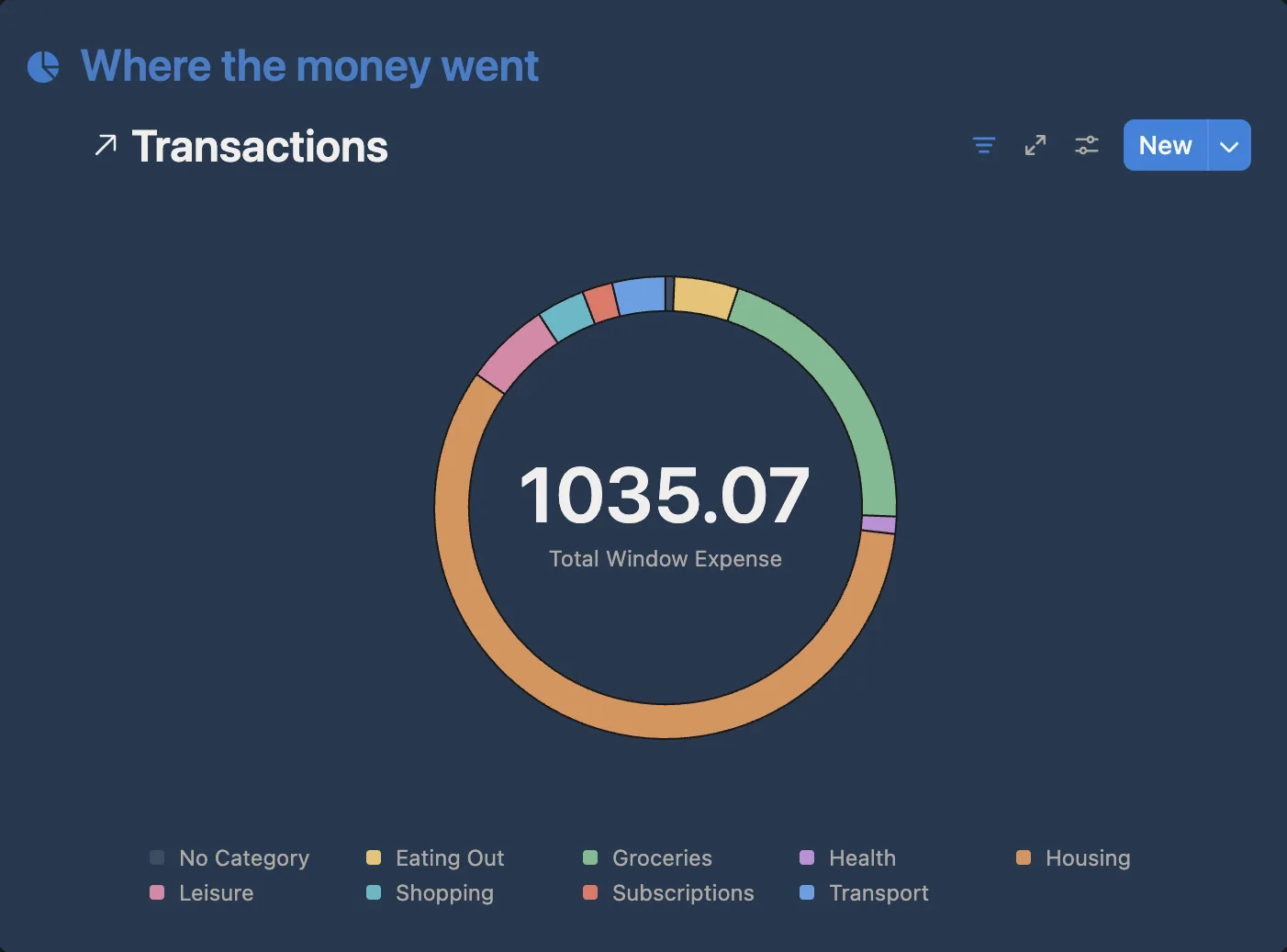
Pick any month and every number follows. These are screenshots of the real template with its sample data, in Notion’s dark mode.
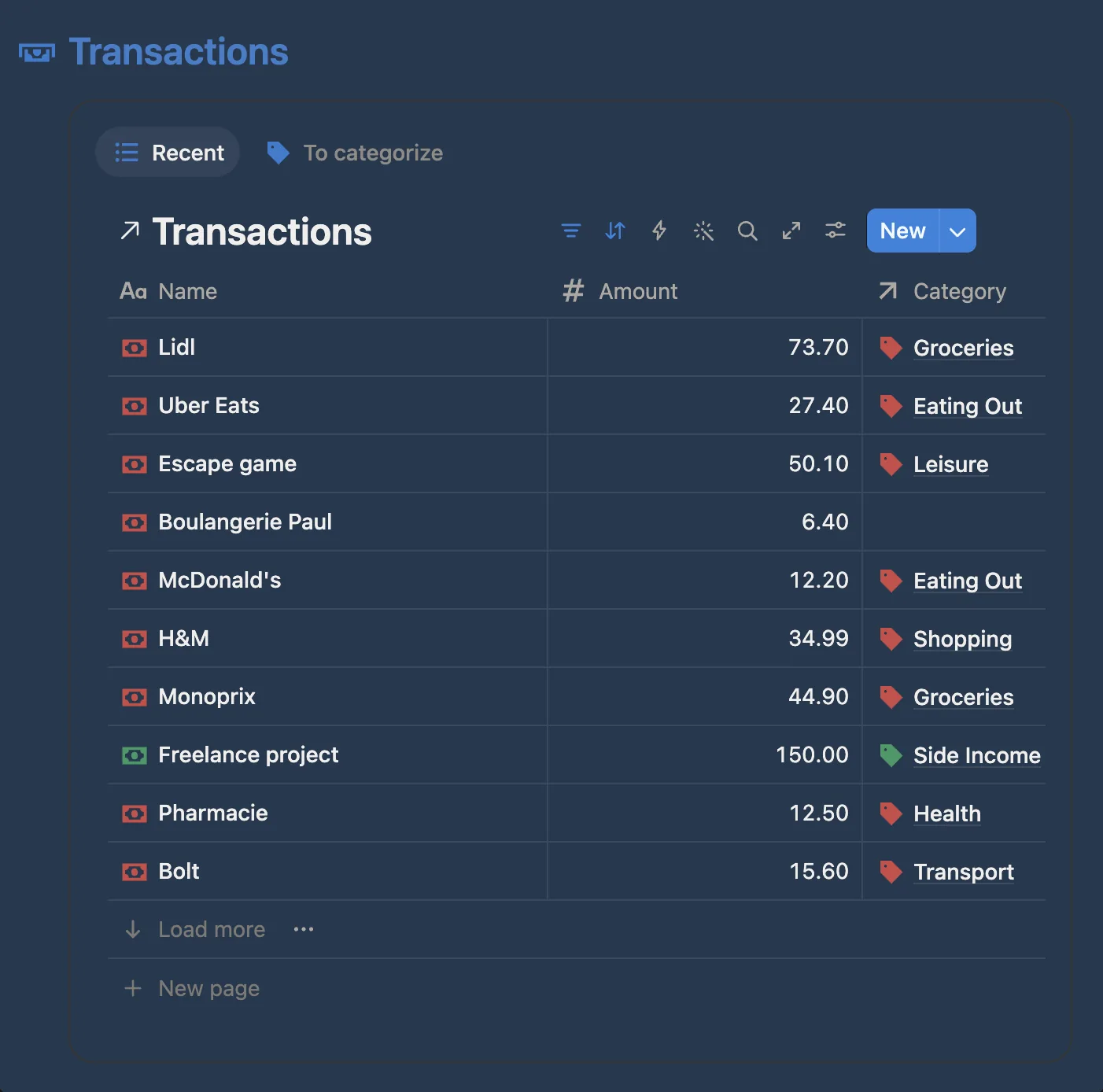
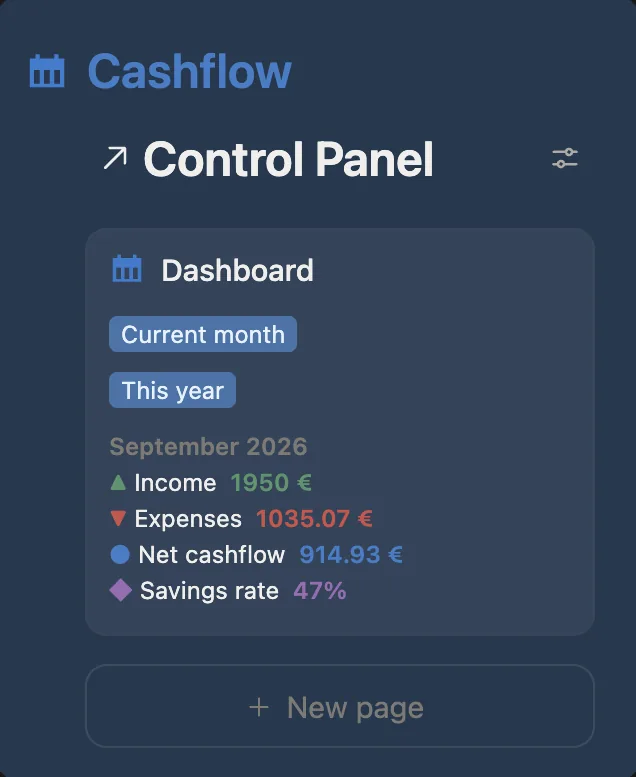
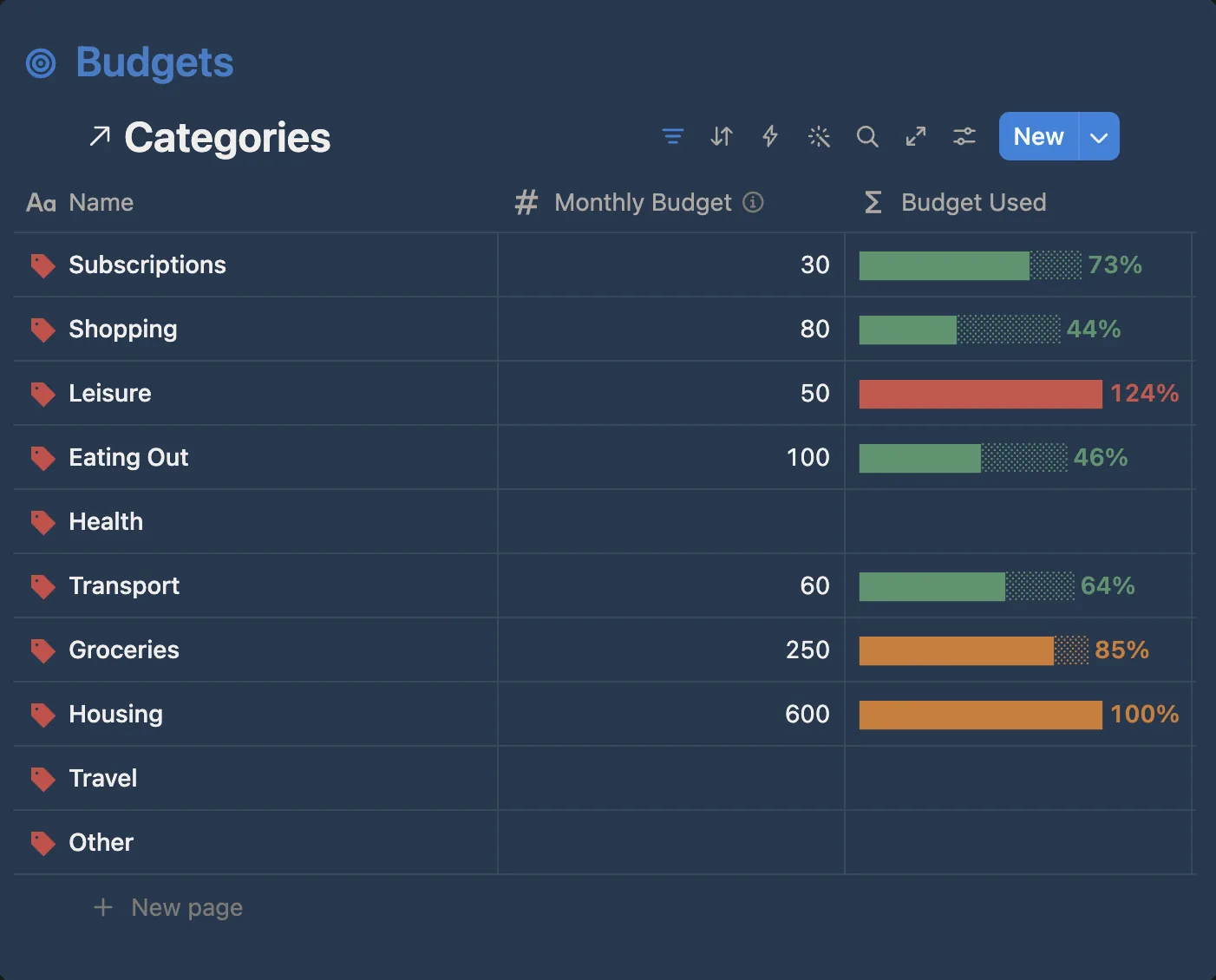
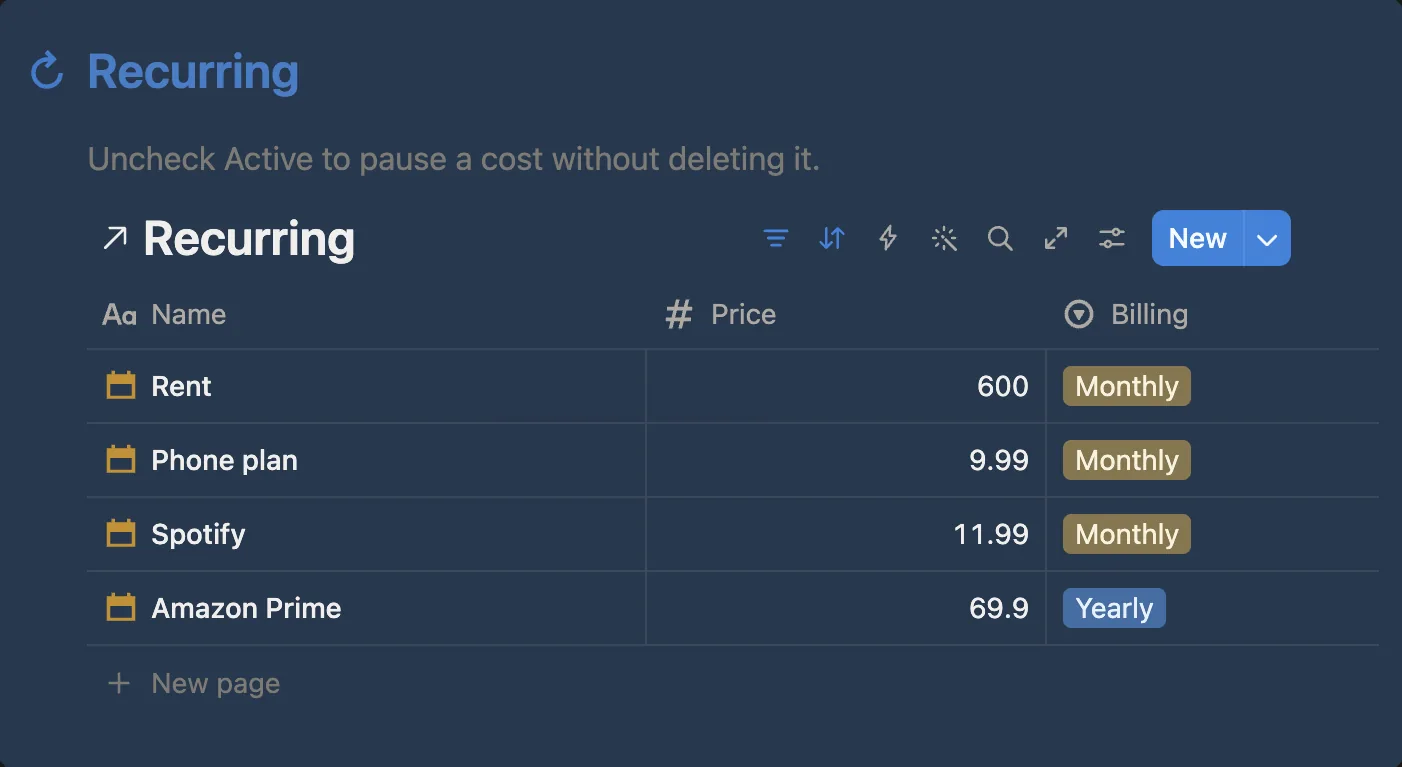
It follows your Notion theme, so it looks just as clean in light mode. Everything you see is a normal Notion page you can rearrange.
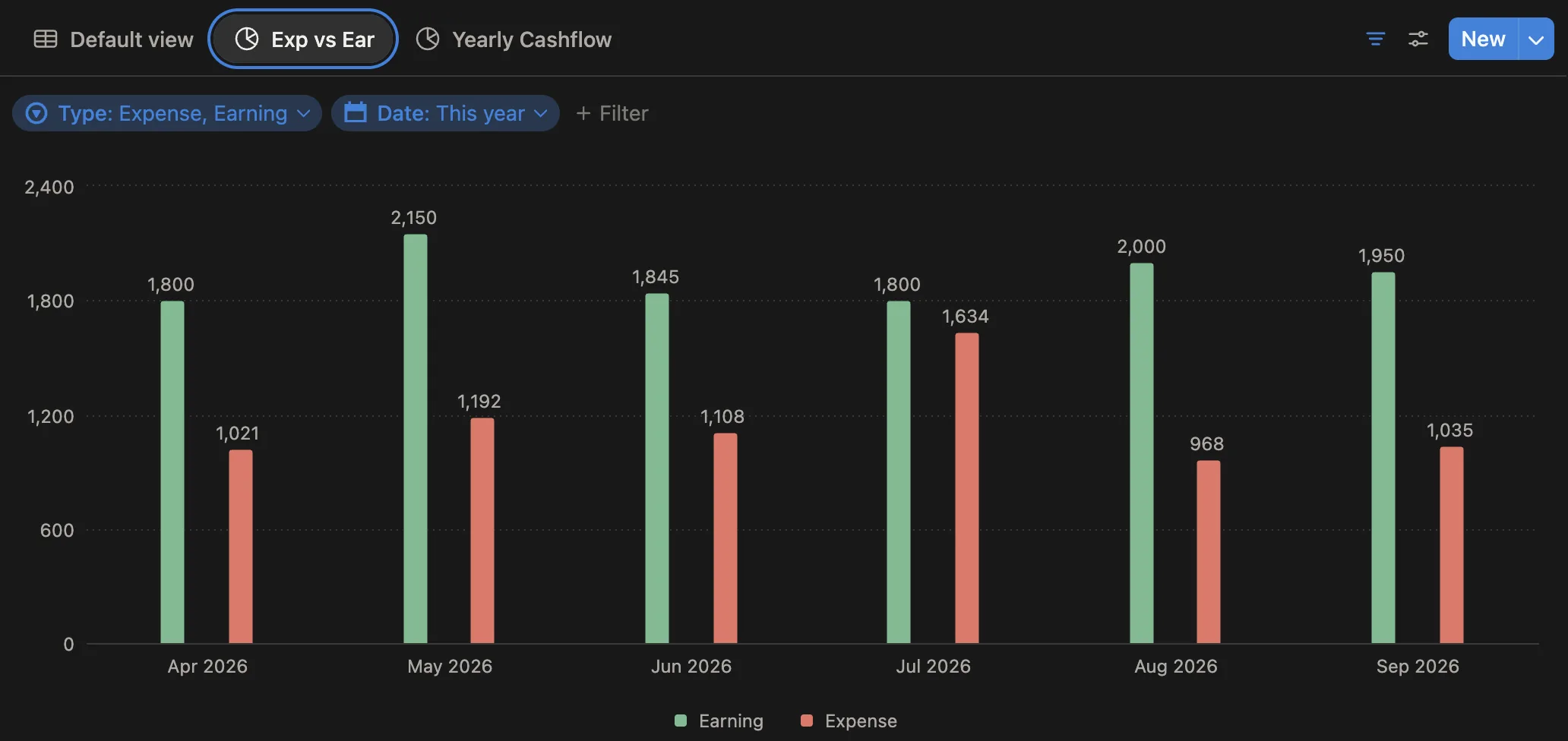
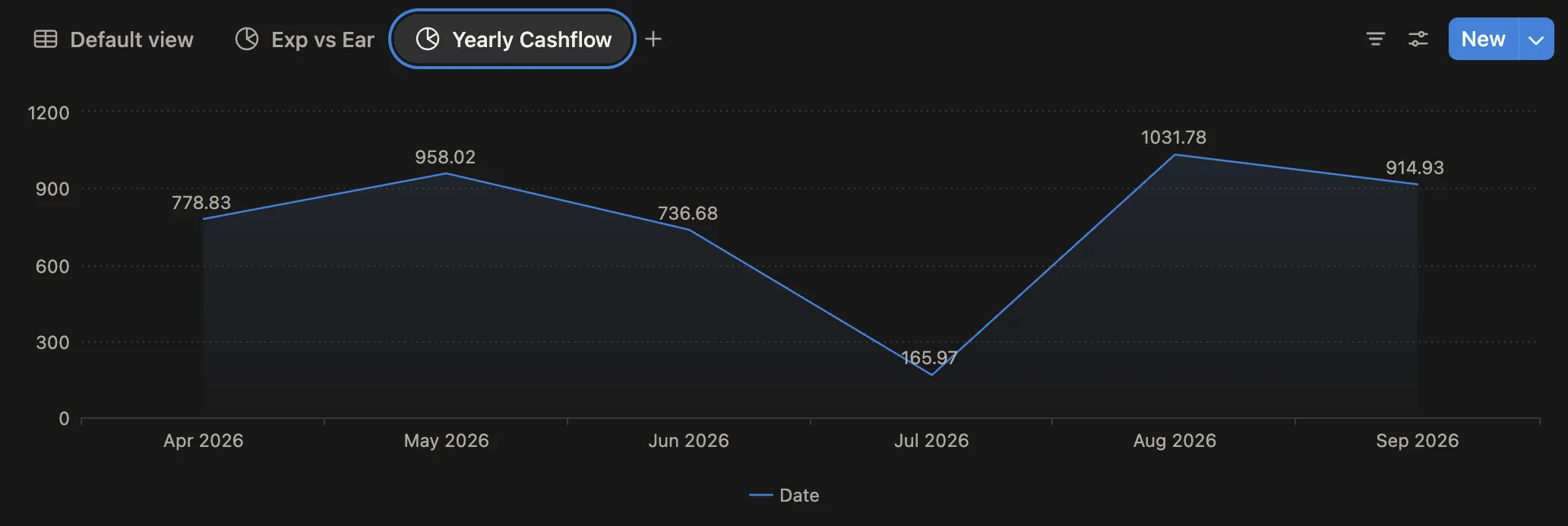
Above zero, you saved that month. July dips because of the summer trip, and you can see exactly how much it cost.
Built for people who never log their expenses
Any month, any year
Choose a period from a dropdown. Totals, budgets and categories switch with it.
Your categories, your rules
Rename, add or delete categories and set a monthly budget for each one.
Any currency
Euros, pounds, dirhams or dollars. Set your symbol once.
Cash and income too
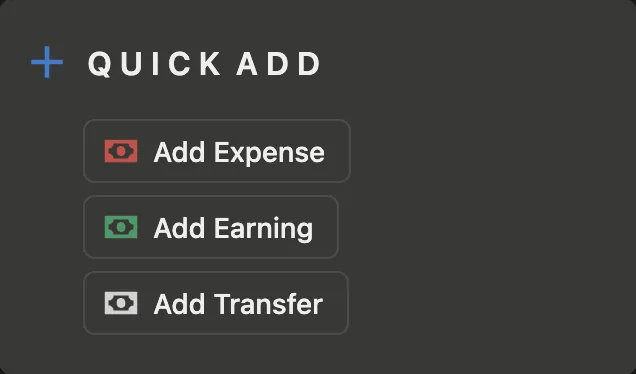
Quick Log adds anything Apple Pay can’t see, straight from your phone. Or use the Quick add buttons in Notion.
Transfers kept apart
Moving money to savings doesn’t count as spending, so your cashflow stays honest.
Your data stays yours
Everything lives in your own Notion. No bank login, no third-party app in between.
Pick your version
Notion template
For anyone who’s happy to type expenses in.
- Cashflow dashboard with month picker
- Budgets, categories and recurring costs
- Monthly charts
- Quick add buttons in Notion
Full setup
For anyone who’d rather never type an expense again.
- Everything in the template
- Auto Log logs and sorts every Apple Pay payment on its own
- Quick Log adds cash, income or any expense in five seconds with Siri, the Action button or a widget
- Step-by-step setup video
- Help by email if you get stuck
Questions
What’s the difference between the free template and the full setup?
The free template has everything in Notion: the dashboard, budgets, recurring costs and charts. You add expenses with the Quick add buttons. The full setup adds two iPhone shortcuts. Auto Log records and sorts every Apple Pay payment on its own, and Quick Log lets you add cash, income or anything else in five seconds. You also get a setup video and help by email.
Do I need a paid Notion plan?
No. The template and the automation both work on Notion’s free plan.
I have an Android phone. Can I use it?
The Notion template works on any device. The automatic logging relies on the Shortcuts app, so it’s iPhone only.
Does it connect to my bank?
No. The shortcut only reads the payment Apple Pay just made and sends it to your Notion, using a private key you create yourself.
Does the automation work in my country?
It needs Apple’s transaction automations, which depend on your region and card. Open the Shortcuts app, go to Automation, and check that your card is listed under Transaction. If it isn’t, Quick Log still works on any iPhone, so you can log every payment in a few seconds.
How long does setup take?
You duplicate the template, paste one key into the shortcut and turn on the automation. The Start here page and the setup video walk you through each step.
How do I get it?
Right after checkout you get an email with the link to duplicate the template into your own Notion. With the full setup, the same email has the shortcuts and the setup video.